Implementing HubBox on Salesforce Commerce Cloud (SFRA)
This guide covers the full installation, configuration, and customisation of the HubBox cartridge on a Salesforce Commerce Cloud (SFCC) storefront using the Storefront Reference Architecture (SFRA). Once integrated, the cartridge enables HubBox pickup point selection directly within your SFCC checkout flow.
This guide is written for SFRA implementations. HubBox can support older Site Genesis storefronts, but this requires a custom approach. Contact your HubBox representative if you are using Site Genesis.
Prerequisites
Before you begin, ensure the following are in place:
| Requirement | Details |
|---|---|
| SFCC development environment access | Sandbox instance with deployment access |
| Business Manager permissions | Administrator or Developer role |
| Build and deployment tooling | sgmf-scripts, SFCC UX Studio, or VS Code with Prophet Debugger |
| HubBox cartridge file | int_hubbox_sfra_vx.y.z.zip provided by HubBox |
Installation
Obtain the HubBox Cartridge
Download the latest version of the int_hubbox_sfra cartridge .zip file from the link provided by your HubBox representative.
SFRA Cartridge version 5.1.1
If you cannot see a download link, ensure you are logged in or contact your HubBox representative.
Add the Cartridge to Your Codebase
- Unzip
int_hubbox_sfra_vx.y.z.zip. - Place the resulting
int_hubbox_sfrafolder into thecartridgesdirectory of your SFCC project repository.
Update the Cartridge Path in Business Manager
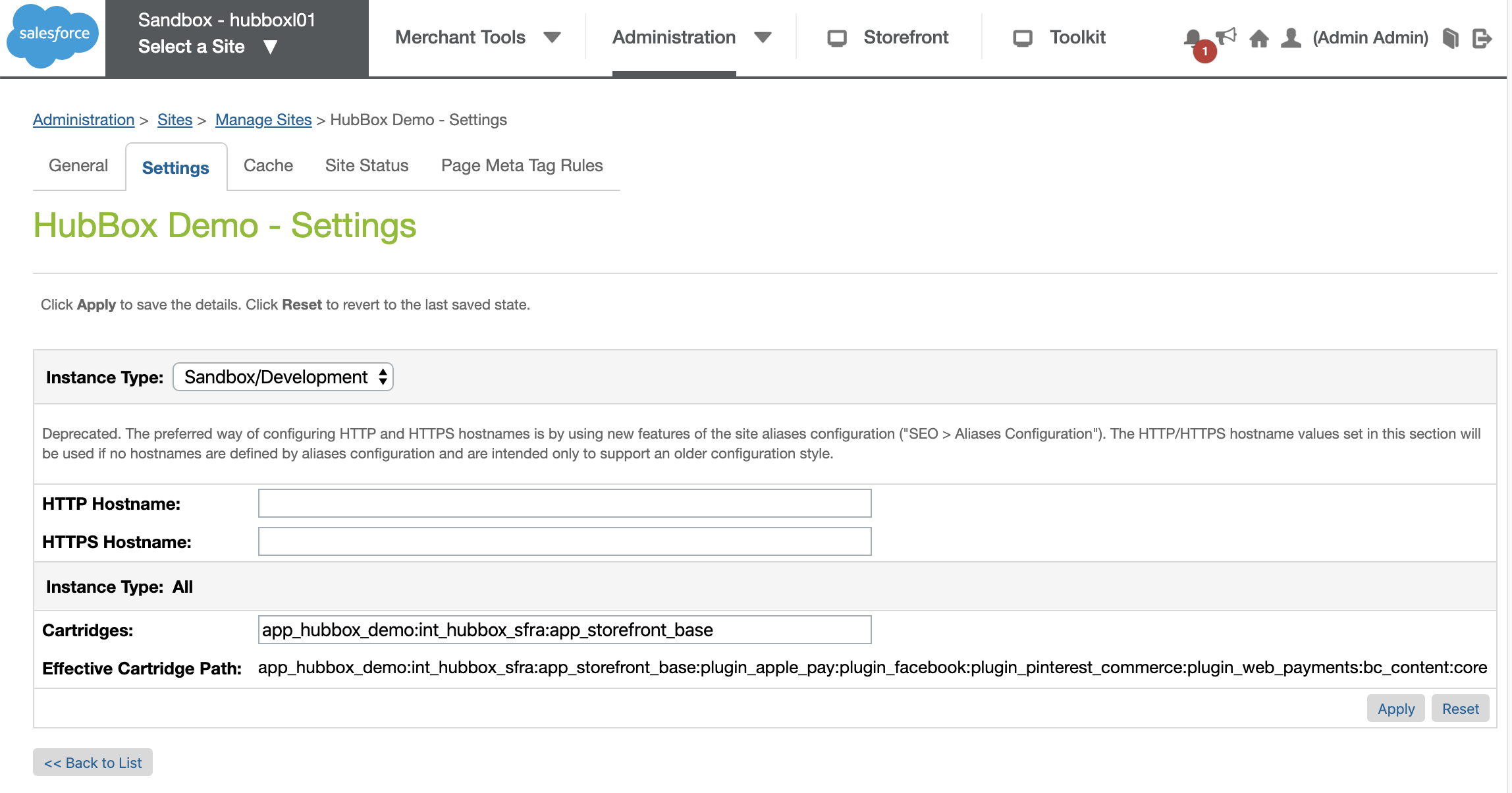
The HubBox cartridge must be added to your site's cartridge path to become active. It should be placed before the base storefront cartridge (app_storefront_base).
- Log in to Business Manager for your Sandbox instance.
- Navigate to Administration > Sites > Manage Sites.
- Select the site you want to configure.
- Go to the Settings tab.
- Locate the Cartridges field.
- Prepend
int_hubbox_sfra:to the existing path, separated by colons. - Click Apply.
Example:
Before: app_storefront_base:plugin_x:plugin_y
After:  int_hubbox_sfra:app_storefront_base:plugin_x:plugin_y
Build and Deploy Code Changes
Run your standard SFCC build process from the command line:
npm run build
# or
yarn build
Deploy the updated code (including the new cartridge) to your Sandbox instance using one of the following methods:
sgmf-scripts:npm run uploadCartridgeoryarn uploadCartridge- SFCC UX Studio synchronisation
- VS Code with Prophet Debugger
Confirm the upload completes without errors.
Metadata Import
The HubBox cartridge requires specific metadata objects and attributes to be imported into your SFCC instance. The required XML files are located in the cartridge/metadata folder of int_hubbox_sfra.
Import Custom Objects and Site Preferences
These files define storage for HubBox API credentials and configuration settings.
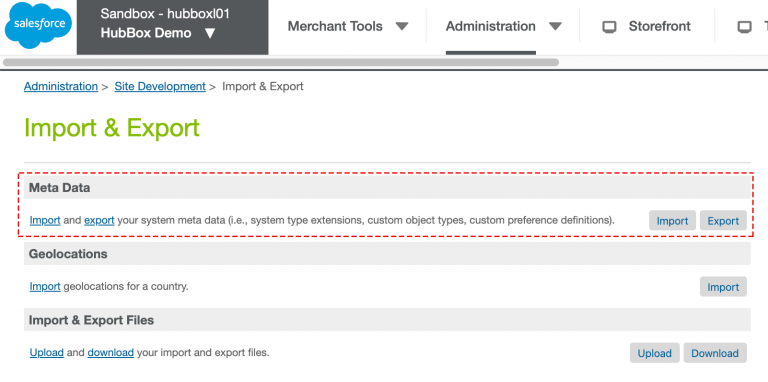
- In Business Manager, navigate to Administration > Site Development > Site Import & Export.
- Under Meta Data, upload and import the following files:
HubBox.CustomObject.xml— Stores HubBox API authentication tokens securely.HubBox.SitePreferences.xml— Creates the HubBox Configs custom site preference group.
- Confirm both imports complete without errors.
Import System Object Extension (Shipment)
This file extends the standard SFCC Shipment object with custom HubBox attributes.
- In Business Manager, navigate to Administration > Site Development > Site Import & Export.
- Under Meta Data, upload and import
HubBox.Shipment.xml. - This adds the following custom attributes to the
Shipmentobject. - Confirm the import completes without errors.
Custom Attributes
| Attribute ID | Type | Description |
|---|---|---|
collectPointId |
String | Unique ID of the selected HubBox location |
collectPointName |
String | Name of the selected HubBox location |
collectPointNetwork |
String | Network key (e.g., ups, dpd) |
collectPointType |
String | Location type (public or private) |
collectPointMeta |
String | Metadata associated with the selected HubBox location, provided by the HubBox API |
Import Service Configuration
This file registers the HTTP service definition used by the cartridge to communicate with the HubBox API.
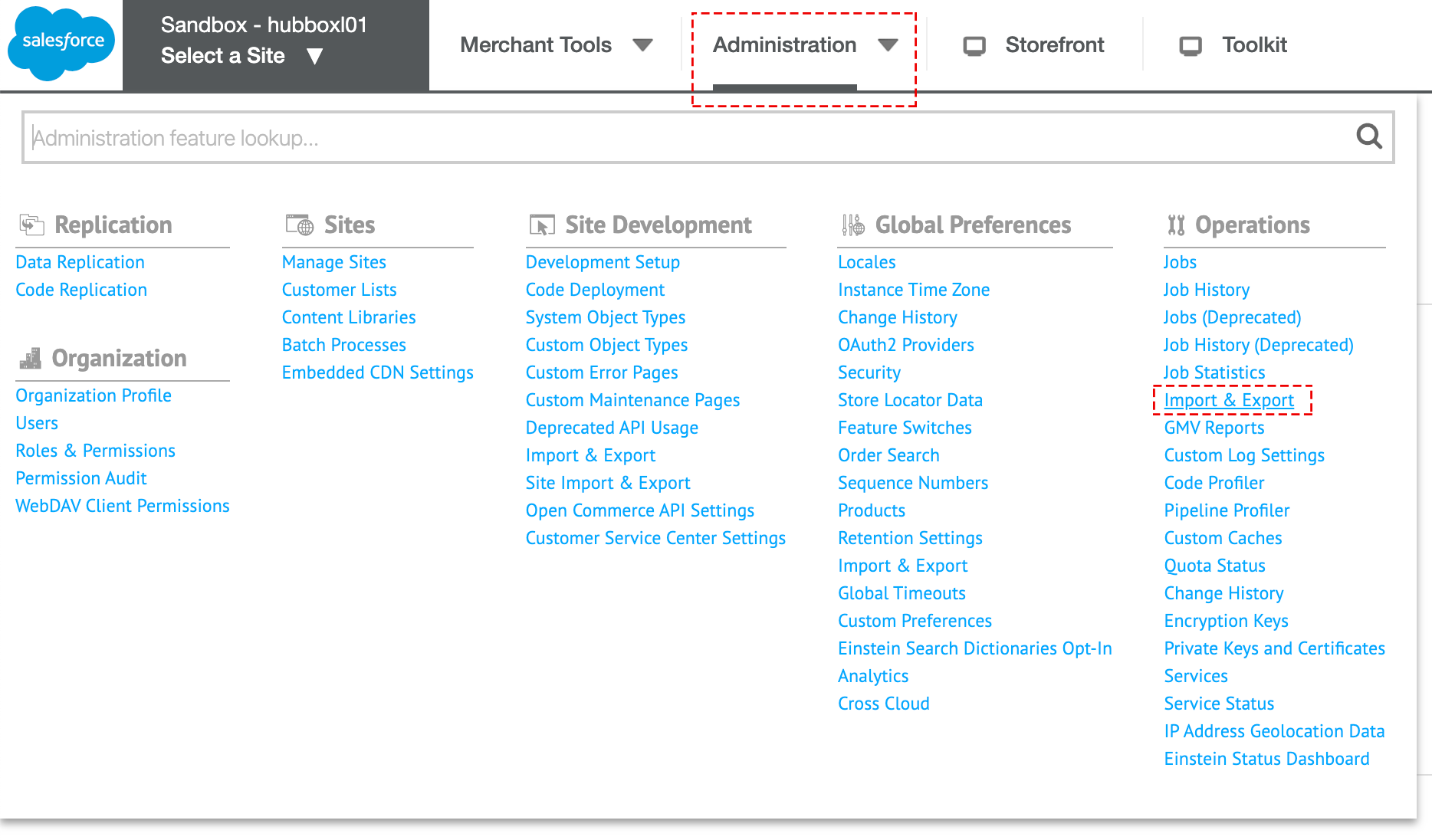
- In Business Manager, navigate to Administration > Operations > Import & Export.
- Under Services, upload and import
HubBox.Services.xml. - Confirm the import completes without errors.
Configuration in Business Manager
Open HubBox Site Preferences
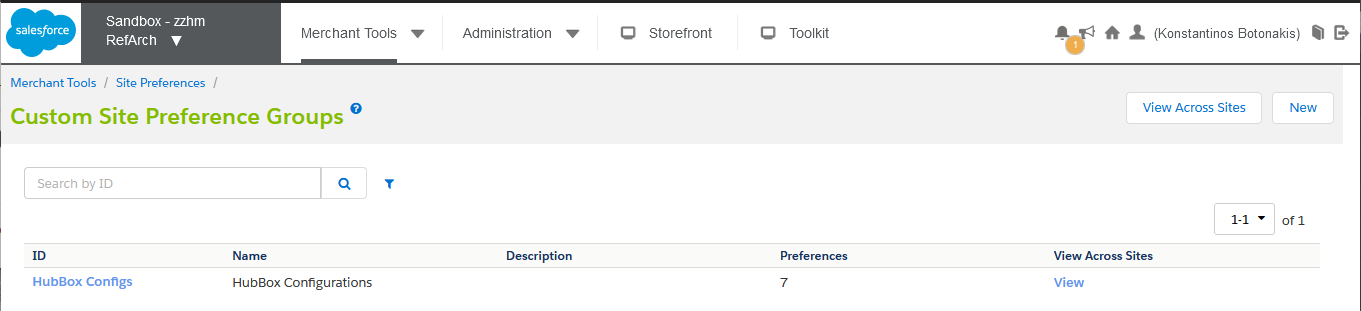
In Business Manager, navigate to Merchant Tools > Site Preferences > Custom Site Preference Groups and select HubBox Configs.
If HubBox Configs is not listed, verify that HubBox.SitePreferences.xml was imported correctly in the Metadata Import section above.
Configure the Fields
Enter the following values:
| Preference ID | Display Name | Description | Source |
|---|---|---|---|
HubBoxEnvironment |
HubBox Environment | Set to Sandbox for all non-production environments; set to Production for live. |
Retailer provides |
HubBoxConfigId |
Retailer Config ID | Your unique HubBox configuration ID, defining enabled networks, base styling, etc. | Provided by HubBox |
HubBoxClientId |
HubBox API Client ID | Client ID for authenticating with the HubBox API. Generate via console.hub-box.com/credential-management. | Provided by HubBox |
HubBoxClientSecret |
HubBox API Client Secret | Client Secret generated alongside the Client ID. | Provided by HubBox |
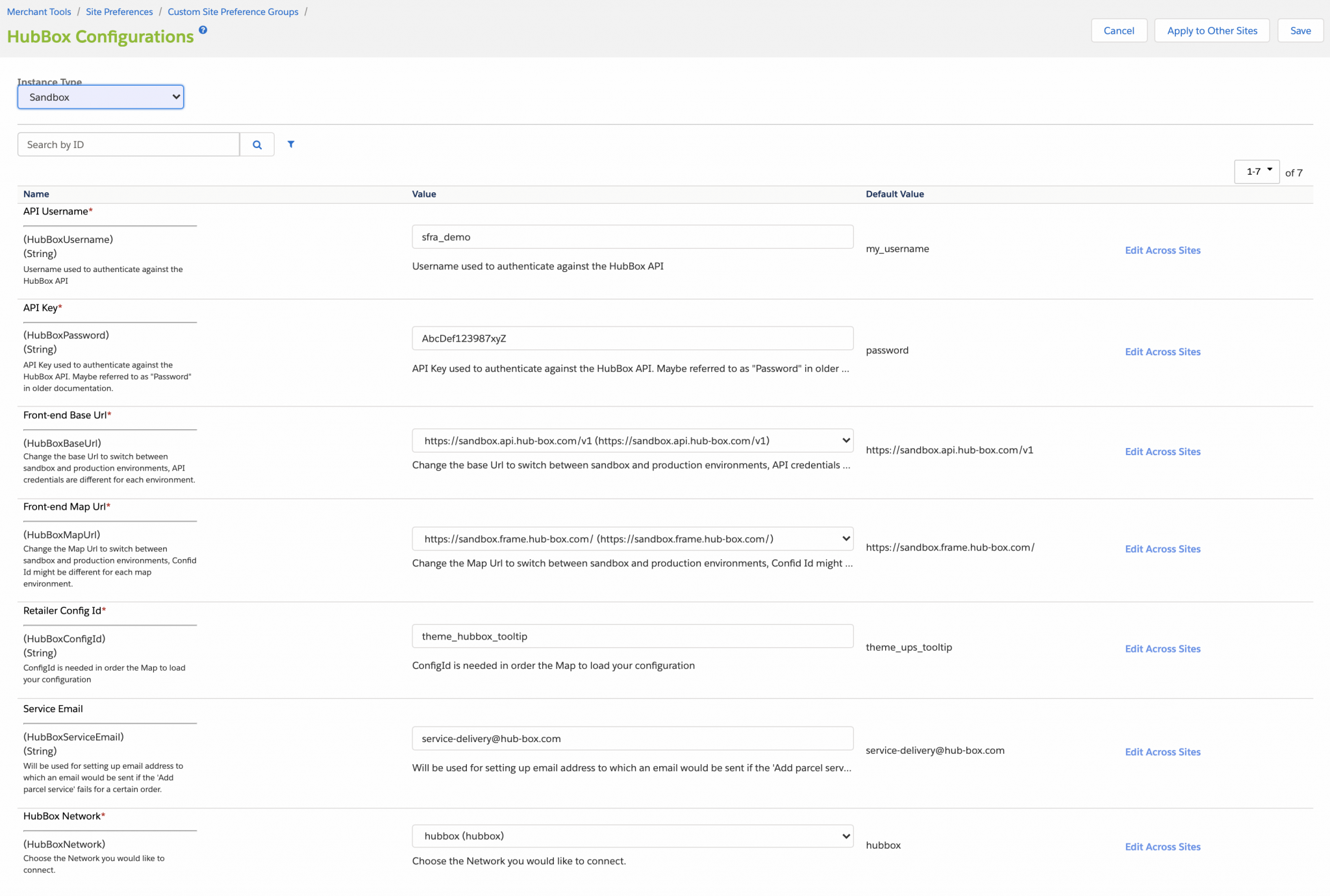
Save
Click Save.
Integration and Customisation
Checkout Integration
The HubBox cartridge integrates automatically with the SFRA checkout flow. However, you must manually update the PlaceOrder handler in CheckoutServices.js to call HubBoxHelper.placeOrder(order) after the order is placed.
In {YOUR_STOREFRONT_CARTRIDGE|app_storefront_base}/controllers/CheckoutServices.js, locate the placeOrderResult block and amend it as follows:
// Places the order
var placeOrderResult = COHelpers.placeOrder(order, fraudDetectionStatus);
if (placeOrderResult.error) {
    res.json({
        error: true,
        errorMessage: Resource.msg('error.technical', 'checkout', null)
    });
    return next();
}

// Can be extracted to the require block at the top of the file
var HubBoxHelper = require('*/cartridge/scripts/helpers/HubBoxHelper');
// Triggers a transaction that populates the custom shipment data and address
HubBoxHelper.placeOrder(order);
Customising the Checkout UI
The int_hubbox_sfra cartridge overrides the standard checkout/shipping/shipmentCard.isml template. Within this override, it includes hubbox/launch.isml, which contains the HTML placeholders and JavaScript initialisation required to render the HubBox UI components (toggles or buttons for delivery choice).
To customise the appearance or placement:
- Copy
int_hubbox_sfra/cartridge/templates/default/hubbox/launch.ismlinto your custom storefront cartridge. Do not modify the base HubBox cartridge directly — this follows SFRA best practices. - HubBox UI elements are built using Web Components. Style them using standard CSS targeting component tags (e.g.,
hubbox-local-pickup-toggles) and their exposed::part()pseudo-elements. Add custom CSS to your theme's stylesheet. - The map/list modal widget appearance (colours, map settings) is primarily controlled by your
configIdconfiguration. Refer to the /docs/widget-configuration documentation for details. - For available CSS parts and variables, refer to the /docs/hubbox-components/components-installation.
Amending the Cartridge Path
Templates
HubBox overrides default/checkout/shipping/shipmentCard.isml to include two HubBox templates for the pickup UI.
To position the pickup launch experience, add the following snippet to shipmentCard.isml in your storefront cartridge:
<fieldset class="hubbox-toggles-block">
  <isinclude template="hubbox/launch" />
</fieldset>
Controllers
HubBox appends to the CheckoutShippingServices controller to pass form input data to the cartridge backend.
The dedicated HubBox controller for toggling pickup is CheckoutShippingServices-HubBox. It is called when a pickup point is selected or cleared, using the following callbacks:
hubBoxPointSelectedCallbackhubBoxPointUnSelectedCallback
Implementing Advanced Features
Product Eligibility Filtering
Use this feature to prevent the HubBox pickup option from appearing when the cart contains items unsuitable for pickup (e.g., oversized or hazardous goods). See the /docs/product-eligibility for strategy guidance.
This requires custom development within your SFCC implementation. Common approaches include:
- Adding a custom Boolean attribute to the
Productsystem object (e.g.,isPickupEligible). - Modifying shipping calculation scripts or models (e.g.,
dw.order.ShippingMgr) to check this attribute for all cart items. - Conditionally excluding HubBox-related shipping methods if any item is ineligible.
Shipping Rate Filtering
Use this feature to show or hide specific SFCC shipping methods based on whether the customer selects Home Delivery or HubBox Pickup. This is essential if you offer different rates or services per delivery type. See the /docs/shipping-rate-filtering for strategy guidance.
Recommended Method: Business Manager Defined
This approach uses custom attributes on Shipping Methods for maximum flexibility.
1. Import Metadata
Create and import a metadata XML file to extend the ShippingMethod system object with the following Boolean custom attributes:
<?xml version="1.0" encoding="UTF-8"?>
<metadata xmlns="demandware.com/xml/impex/metadata/2006-10-31">
    <type-extension type-id="ShippingMethod">
        <custom-attribute-definitions>
            <attribute-definition attribute-id="isHomeDeliveryMethod">
                <display-name xml:lang="x-default">Is Home Delivery Method?</display-name>
                <description xml:lang="x-default">Display for standard home/alternative address delivery.</description>
                <type>boolean</type>
                <mandatory-flag>false</mandatory-flag>
                <default-value>false</default-value>
            </attribute-definition>
            <attribute-definition attribute-id="isInstoreDeliveryMethod">
                <display-name xml:lang="x-default">Is In-Store Pickup Method?</display-name>
                <description xml:lang="x-default">Display when customer collects from your own store (BOPIS).</description>
                <type>boolean</type>
                <mandatory-flag>false</mandatory-flag>
                <default-value>false</default-value>
            </attribute-definition>
            <attribute-definition attribute-id="isHubBoxDeliveryMethod">
                <display-name xml:lang="x-default">Is HubBox Network Pickup Method?</display-name>
                <description xml:lang="x-default">Display when customer selects a HubBox network pickup point.</description>
                <type>boolean</type>
                <mandatory-flag>false</mandatory-flag>
                <default-value>false</default-value>
            </attribute-definition>
        </custom-attribute-definitions>
        <group-definitions>
            <attribute-group group-id="HubBoxFiltering">
                <display-name xml:lang="x-default">HubBox Delivery Type Filtering</display-name>
                <attribute attribute-id="isHomeDeliveryMethod"/>
                <attribute attribute-id="isInstoreDeliveryMethod"/>
                <attribute attribute-id="isHubBoxDeliveryMethod"/>
            </attribute-group>
        </group-definitions>
    </type-extension>
</metadata>
2. Configure Shipping Methods in Business Manager
Navigate to Merchant Tools > Ordering > Shipping Methods. Edit each relevant shipping method and, under the HubBox Delivery Type Filtering custom attributes tab, check the single appropriate box for that method:
isHomeDeliveryMethod— standard home deliveryisInstoreDeliveryMethod— BOPIS / own store pickupisHubBoxDeliveryMethod— HubBox network pickup point
Leave all boxes unchecked for methods that should not appear for any delivery type.
3. Cartridge Logic
The HubBox cartridge's override of ~/cartridge/scripts/checkout/shippingHelpers.js (specifically getApplicableShippingMethods) reads these custom attributes and filters available shipping methods accordingly:
// Simplified logic within shippingHelpers.js (provided by int_hubbox_sfra)
var filteredMethods = [];
collections.forEach(shippingMethods, function (shippingMethod) {
    var isClickAndCollect = HubBoxHelper.isShipmentClickAndCollect(shipment);
    var isHubBoxNetwork = HubBoxHelper.isShipmentHubBox(shipment);
    var isInstore = HubBoxHelper.isShipmentInstore(shipment);

    if (isClickAndCollect) {
        if (
            (isHubBoxNetwork && shippingMethod.custom.isHubBoxDeliveryMethod) ||
            (isInstore && shippingMethod.custom.isInstoreDeliveryMethod)
        ) {
            filteredMethods.push(new ShippingMethodModel(shippingMethod, shipment));
        }
    } else {
        if (shippingMethod.custom.isHomeDeliveryMethod) {
            filteredMethods.push(new ShippingMethodModel(shippingMethod, shipment));
        }
    }
});
return filteredMethods;
Alternative Method: Software Defined (Not Recommended)
The cartridge also includes commented-out examples in shippingHelpers.js showing how to filter based on hardcoded Shipping Method IDs. This approach is less flexible than the Business Manager attribute method and is not recommended for production use.
BOPIS / Own Store Pickup
You can configure HubBox to display your own physical stores (defined in SFCC Business Manager under Merchant Tools > Stores) as pickup options alongside network locations. This requires a data sync between SFCC and HubBox.
1. Add a Custom Attribute (Optional)
Add a Boolean custom attribute (e.g., isClickAndCollectEnabled) to the Store system object via metadata import, following the same process as the Shipment object extension above.
2. Configure Stores (Optional)
In Merchant Tools > Stores, edit each store and check isClickAndCollectEnabled only for locations that should offer BOPIS.
3. Provide the Sync URL to HubBox
The cartridge exposes store data via the HubBoxStoreSync-Stores controller. Provide the secure URL for this controller to your HubBox Integrations Manager.
URL format:
{YOUR_INSTANCE_HOSTNAME}/on/demandware.store/{YOUR_SITE_ID}/{YOUR_LOCALE}/HubBoxStoreSync-Stores
Example:
dev01-your-site.demandware.net/on/demandware.store/Sites-YourSite-Site/en_GB/HubBoxStoreSync-Stores
- Authentication: This endpoint requires Basic Authentication. Provide the username and password for your instance alongside the URL.
- SSL: If using a custom domain, ensure the SSL certificate is valid and publicly trusted.
4. Modify the Controller for Filtering (Optional)
If you added isClickAndCollectEnabled and want to sync only enabled stores, modify int_hubbox_sfra/cartridge/controllers/HubBoxStoreSync.js to filter on that attribute:
// Example snippet from HubBoxStoreSync.js
server.get("Stores", function (req, res, next) {
    // Option 1: Use a helper that checks the custom attribute
    var storeList = HubBoxStoreHelper.getPickupInStoreEnabledStores();

    // Option 2: Filter inline
    // var allStores = StoreMgr.getAllStores();
    // var storeList = collections.filter(allStores, function(store) {
    //     return store.custom.isClickAndCollectEnabled === true;
    // });

    res.json({ stores: mappedStoreList });
    return next();
});
HubBox will regularly poll the provided URL, ingest the store data, and display eligible stores in the widget via your configId.
Testing
Thorough testing on your Sandbox or Development instance is essential before deploying to Production.
Verification Checklist
- Cartridge Activation — Confirm
int_hubbox_sfrais active and in the correct position in the cartridge path. - Metadata — Verify custom attributes exist on
Shipmentobjects and Shipping Methods. Confirm HubBox Configs site preferences are present. - Site Preferences — Double-check API credentials, URLs, and Config ID are entered correctly.
- Checkout UI — Load the checkout page and confirm the HubBox launch experience (toggles/buttons) renders correctly.
- Widget Functionality — Open the map widget, search for locations, and select a location.
- Address Population — Critical: After selecting a pickup point, confirm the SFCC shipping address form populates correctly with the pickup location's details.
- Shipping Method Filtering — (If configured) Confirm shipping methods filter correctly when switching between Home Delivery and Pickup. Test with multiple cart scenarios.
- Place Test Orders — Complete end-to-end test orders using HubBox pickup.
- Order XML Verification — Export the test order XML via BM > Ordering > Orders > Export. Confirm the HubBox custom attributes (
collectPointId,collectPointName, etc.) are present and correct. - BOPIS Sync — (If configured) Test the sync URL manually in a browser (with authentication) to confirm it returns valid JSON store data. Verify stores appear correctly in the widget.
- Cross-Browser and Device — Test on multiple browsers and mobile devices or emulators.
Going Live
Complete Final Testing
Complete final testing on a Staging instance (if available) that mirrors your Production configuration.
Update Site Preferences
In Production Business Manager, update HubBoxBaseUrl and HubBoxMapUrl under Merchant Tools > Site Preferences > Custom Site Preference Groups > HubBox Configs to the Production URLs provided by HubBox.
Deploy Code
Ensure the correct, tested version of your codebase (with int_hubbox_sfra in the cartridge path) is deployed to your Production environment.
Activate
If required, ensure the code version containing the cartridge is activated.
Order Data Reference
Once live, the HubBox cartridge populates the SFCC shipping address with the selected pickup point's details. Upon order placement, custom attributes are written to the Shipment object in the order XML:
<shipment shipment-id="00000001">
    <shipping-address>
        <first-name>Jane</first-name>
        <last-name>Doe</last-name>
        <address1>CVS STORE # 10043</address1>
        <city>ATLANTA</city>
        <postal-code>30303</postal-code>
        <state-code>GA</state-code>
        <country-code>US</country-code>
        <phone>9876543211</phone>
    </shipping-address>
    <custom-attributes>
        <custom-attribute attribute-id="collectPointId">U99960535</custom-attribute>
        <custom-attribute attribute-id="collectPointName">CVS STORE # 10043</custom-attribute>
        <custom-attribute attribute-id="collectPointNetwork">ups</custom-attribute>
        <custom-attribute attribute-id="collectPointType">public</custom-attribute>
    </custom-attributes>
</shipment>
This data is critical for your backend systems (OMS, WMS, ERP) to identify pickup orders and for correct manifesting with the carrier.
The full order XML examples below show how HubBox data appears in context for UPS and DPD shipments.
UPS Example Order XML DPD Example Order XML<?xml version="1.0" encoding="UTF-8"?>
<orders xmlns="demandware.com/xml/impex/order/2006-10-31">
<order order-no="00000301">
<order-date>2021-09-17T08:54:19.444Z</order-date>
<created-by>storefront</created-by>
<original-order-no>00000301</original-order-no>
<currency>USD</currency>
<customer-locale>en_US</customer-locale>
<taxation>net</taxation>
<invoice-no>00001501</invoice-no>
<customer>
<customer-name>Jane Doe</customer-name>
<customer-email>janedoe@test.com</customer-email>
<billing-address>
<first-name>Jane</first-name>
<last-name>Doe</last-name>
<address1>123 Main Street</address1>
<city>ATLANTA</city>
<postal-code>30303</postal-code>
<state-code>OTHER</state-code>
<country-code>US</country-code>
<phone>07223223123</phone>
</billing-address>
</customer>
<status>
<order-status>OPEN</order-status>
<shipping-status>NOT_SHIPPED</shipping-status>
<confirmation-status>CONFIRMED</confirmation-status>
<payment-status>NOT_PAID</payment-status>
</status>
<current-order-no>00000301</current-order-no>
<product-lineitems>
<product-lineitem>
<net-price>38.00</net-price>
<tax>1.90</tax>
<gross-price>39.90</gross-price>
<base-price>38.00</base-price>
<lineitem-text>Gold Stretch Bangle</lineitem-text>
<tax-basis>38.00</tax-basis>
<position>1</position>
<product-id>013742002928M</product-id>
<product-name>Gold Stretch Bangle</product-name>
<quantity unit="">1.0</quantity>
<tax-rate>0.05</tax-rate>
<shipment-id>00001501</shipment-id>
<shipping-lineitem>
<net-price>10.00</net-price>
<tax>0.50</tax>
<gross-price>10.50</gross-price>
<base-price>10.00</base-price>
<lineitem-text>Item Shipping Cost (Surcharge)</lineitem-text>
<tax-basis>10.00</tax-basis>
<quantity unit="">1.0</quantity>
<tax-rate>0.05</tax-rate>
<type>surcharge</type>
</shipping-lineitem>
<gift>false</gift>
</product-lineitem>
</product-lineitems>
<shipping-lineitems>
<shipping-lineitem>
<net-price>5.99</net-price>
<tax>0.30</tax>
<gross-price>6.29</gross-price>
<base-price>5.99</base-price>
<lineitem-text>Shipping</lineitem-text>
<tax-basis>5.99</tax-basis>
<item-id>STANDARD_SHIPPING</item-id>
<shipment-id>00001501</shipment-id>
<tax-rate>0.05</tax-rate>
</shipping-lineitem>
</shipping-lineitems>
<shipments>
<shipment shipment-id="00000001">
<status>
<shipping-status>NOT_SHIPPED</shipping-status>
</status>
<shipping-method>002</shipping-method>
<shipping-address>
<first-name>Jane</first-name>
<last-name>Doe</last-name>
<address1>CVS STORE # 10043</address1>
<city>ATLANTA</city>
<postal-code>30303</postal-code>
<state-code>GA</state-code>
<country-code>US</country-code>
<phone>9876543211</phone>
</shipping-address>
<gift>false</gift>
<totals>
<merchandize-total>
<net-price>148.00</net-price>
<tax>7.40</tax>
<gross-price>155.40</gross-price>
</merchandize-total>
<adjusted-merchandize-total>
<net-price>148.00</net-price>
<tax>7.40</tax>
<gross-price>155.40</gross-price>
</adjusted-merchandize-total>
<shipping-total>
<net-price>11.99</net-price>
<tax>0.60</tax>
<gross-price>12.59</gross-price>
</shipping-total>
<adjusted-shipping-total>
<net-price>11.99</net-price>
<tax>0.60</tax>
<gross-price>12.59</gross-price>
</adjusted-shipping-total>
<shipment-total>
<net-price>159.99</net-price>
<tax>8.00</tax>
<gross-price>167.99</gross-price>
</shipment-total>
</totals>
<custom-attributes>
<custom-attribute attribute-id="collectPointId">U99960535</custom-attribute>
<custom-attribute attribute-id="collectPointName">CVS STORE # 10043</custom-attribute>
<custom-attribute attribute-id="collectPointNetwork">ups</custom-attribute>
<custom-attribute attribute-id="collectPointType">public</custom-attribute>
</custom-attributes>
</shipment>
</shipments>
<totals>
<merchandize-total>
<net-price>38.00</net-price>
<tax>1.90</tax>
<gross-price>39.90</gross-price>
</merchandize-total>
<adjusted-merchandize-total>
<net-price>38.00</net-price>
<tax>1.90</tax>
<gross-price>39.90</gross-price>
</adjusted-merchandize-total>
<shipping-total>
<net-price>15.99</net-price>
<tax>0.80</tax>
<gross-price>16.79</gross-price>
</shipping-total>
<adjusted-shipping-total>
<net-price>15.99</net-price>
<tax>0.80</tax>
<gross-price>16.79</gross-price>
</adjusted-shipping-total>
<order-total>
<net-price>53.99</net-price>
<tax>2.70</tax>
<gross-price>56.69</gross-price>
</order-total>
</totals>
<payments>
<payment>
<credit-card>
<card-type>VISA</card-type>
<card-number>XXXX-XXXX-XXXX-1111</card-number>
<card-holder>Jane Doe</card-holder>
<card-token>dscvse6xdkj</card-token>
<expiration-month>2</expiration-month>
<expiration-year>2025</expiration-year>
</credit-card>
<amount>56.69</amount>
<processor-id>BASIC_CREDIT</processor-id>
<transaction-id>00000301</transaction-id>
</payment>
</payments>
<remoteHost>86.147.199.105</remoteHost>
</order>
</orders>
<?xml version="1.0" encoding="UTF-8"?>
<orders xmlns="demandware.com/xml/impex/order/2006-10-31">
    <order order-no="00000301">
        <order-date>2021-09-17T08:54:19.444Z</order-date>
        <created-by>storefront</created-by>
        <original-order-no>00000301</original-order-no>
        <currency>GBP</currency>
        <customer-locale>en_GB</customer-locale>
        <taxation>net</taxation>
        <invoice-no>00001501</invoice-no>
        <customer>
            <customer-name>Jane Doe</customer-name>
            <customer-email>janedoe@test.com</customer-email>
            <billing-address>
                <first-name>Jane</first-name>
                <last-name>Doe</last-name>
                <address1>123 Test Street</address1>
                <city>London</city>
                <postal-code>SE1 9RA</postal-code>
                <state-code>OTHER</state-code>
                <country-code>GB</country-code>
                <phone>07223223123</phone>
            </billing-address>
        </customer>
        <status>
            <order-status>OPEN</order-status>
            <shipping-status>NOT_SHIPPED</shipping-status>
            <confirmation-status>CONFIRMED</confirmation-status>
            <payment-status>NOT_PAID</payment-status>
        </status>
        <current-order-no>00000301</current-order-no>
        <product-lineitems>
            <product-lineitem>
                <net-price>38.00</net-price>
                <tax>1.90</tax>
                <gross-price>39.90</gross-price>
                <base-price>38.00</base-price>
                <lineitem-text>Gold Stretch Bangle</lineitem-text>
                <tax-basis>38.00</tax-basis>
                <position>1</position>
                <product-id>013742002928M</product-id>
                <product-name>Gold Stretch Bangle</product-name>
                <quantity unit="">1.0</quantity>
                <tax-rate>0.05</tax-rate>
                <shipment-id>00001501</shipment-id>
                <shipping-lineitem>
                    <net-price>10.00</net-price>
                    <tax>0.50</tax>
                    <gross-price>10.50</gross-price>
                    <base-price>10.00</base-price>
                    <lineitem-text>Item Shipping Cost (Surcharge)</lineitem-text>
                    <tax-basis>10.00</tax-basis>
                    <quantity unit="">1.0</quantity>
                    <tax-rate>0.05</tax-rate>
                    <type>surcharge</type>
                </shipping-lineitem>
                <gift>false</gift>
            </product-lineitem>
        </product-lineitems>
        <shipping-lineitems>
            <shipping-lineitem>
                <net-price>5.99</net-price>
                <tax>0.30</tax>
                <gross-price>6.29</gross-price>
                <base-price>5.99</base-price>
                <lineitem-text>Shipping</lineitem-text>
                <tax-basis>5.99</tax-basis>
                <item-id>STANDARD_SHIPPING</item-id>
                <shipment-id>00001501</shipment-id>
                <tax-rate>0.05</tax-rate>
            </shipping-lineitem>
        </shipping-lineitems>
        <shipments>
            <shipment shipment-id="00001501">
                <status>
                    <shipping-status>NOT_SHIPPED</shipping-status>
                </status>
                <shipping-method>001</shipping-method>
                <shipping-address>
                    <first-name>Jane</first-name>
                    <last-name>Doe</last-name>
                    <address1>Snappy Snaps</address1>
                    <city>London</city>
                    <postal-code>WC2E 9AX</postal-code>
                    <state-code>OTHER</state-code>
                    <country-code>GB</country-code>
                    <phone>07223223123</phone>
                </shipping-address>
                <gift>false</gift>
                <totals>
                    <merchandize-total>
                        <net-price>38.00</net-price>
                        <tax>1.90</tax>
                        <gross-price>39.90</gross-price>
                    </merchandize-total>
                    <adjusted-merchandize-total>
                        <net-price>38.00</net-price>
                        <tax>1.90</tax>
                        <gross-price>39.90</gross-price>
                    </adjusted-merchandize-total>
                    <shipping-total>
                        <net-price>15.99</net-price>
                        <tax>0.80</tax>
                        <gross-price>16.79</gross-price>
                    </shipping-total>
                    <adjusted-shipping-total>
                        <net-price>15.99</net-price>
                        <tax>0.80</tax>
                        <gross-price>16.79</gross-price>
                    </adjusted-shipping-total>
                    <shipment-total>
                        <net-price>53.99</net-price>
                        <tax>2.70</tax>
                        <gross-price>56.69</gross-price>
                    </shipment-total>
                </totals>
                <custom-attributes>
                    <custom-attribute attribute-id="collectPointId">GB14496</custom-attribute>
                    <custom-attribute attribute-id="collectPointName">Snappy Snaps</custom-attribute>
                    <custom-attribute attribute-id="collectPointNetwork">dpd</custom-attribute>
                    <custom-attribute attribute-id="collectPointType">public</custom-attribute>
                </custom-attributes>
            </shipment>
        </shipments>
        <totals>
            <merchandize-total>
                <net-price>38.00</net-price>
                <tax>1.90</tax>
                <gross-price>39.90</gross-price>
            </merchandize-total>
            <adjusted-merchandize-total>
                <net-price>38.00</net-price>
                <tax>1.90</tax>
                <gross-price>39.90</gross-price>
            </adjusted-merchandize-total>
            <shipping-total>
                <net-price>15.99</net-price>
                <tax>0.80</tax>
                <gross-price>16.79</gross-price>
            </shipping-total>
            <adjusted-shipping-total>
                <net-price>15.99</net-price>
                <tax>0.80</tax>
                <gross-price>16.79</gross-price>
            </adjusted-shipping-total>
            <order-total>
                <net-price>53.99</net-price>
                <tax>2.70</tax>
                <gross-price>56.69</gross-price>
            </order-total>
        </totals>
        <payments>
            <payment>
                <credit-card>
                    <card-type>VISA</card-type>
                    <card-number>XXXX-XXXX-XXXX-1111</card-number>
                    <card-holder>Jane Doe</card-holder>
                    <card-token>dscvse6xdkj</card-token>
                    <expiration-month>2</expiration-month>
                    <expiration-year>2025</expiration-year>
                </credit-card>
                <amount>56.69</amount>
                <processor-id>BASIC_CREDIT</processor-id>
                <transaction-id>00000301</transaction-id>
            </payment>
        </payments>
        <remoteHost>86.147.199.105</remoteHost>
    </order>
</orders>
Troubleshooting
HubBox Configs preference group is missing in Business ManagerThis indicates that HubBox.SitePreferences.xml was not imported successfully. Return to Administration > Site Development > Site Import & Export and re-import the file. Check the import log for errors.
Check the following in order:
- Confirm
int_hubbox_sfrais present and correctly positioned in the cartridge path (beforeapp_storefront_base). - Confirm the code has been built and deployed successfully to the instance.
- Confirm
HubBoxConfigIdis populated correctly in HubBox Configs site preferences. - Inspect the browser console for JavaScript errors that may indicate a failed component initialisation.
- Verify that
hubbox/launch.ismlis being included correctly withinshipmentCard.isml.
This is most commonly caused by a missing or incorrect call to HubBoxHelper.placeOrder(order) in CheckoutServices.js. Review Step 4 of the Integration and Customisation section and confirm the helper is called after COHelpers.placeOrder(order, fraudDetectionStatus) completes without error.
Verify that HubBox.Shipment.xml was imported successfully. Navigate to Administration > Site Development > Site Import & Export and re-import if necessary. After re-importing, place a new test order and re-export to confirm the attributes are present.
- Confirm the shipping method metadata XML was imported and the custom attribute group HubBox Delivery Type Filtering is visible on each shipping method in Merchant Tools > Ordering > Shipping Methods.
- Confirm each shipping method has exactly one of
isHomeDeliveryMethod,isInstoreDeliveryMethod, orisHubBoxDeliveryMethodchecked — not multiple. - Confirm the
getApplicableShippingMethodsoverride inshippingHelpers.jsis active (i.e., theint_hubbox_sfracartridge is earlier in the path thanapp_storefront_base).
- Confirm the URL format is correct, including the correct site ID and locale.
- Test the URL directly in a browser using Basic Authentication credentials.
- If you have implemented the optional
isClickAndCollectEnabledfilter, confirm the controller modification is deployed and that at least one store has the attribute set totrue. - Check that the SSL certificate for your instance domain is valid and publicly trusted.